USB Forensics Pt. 2 Vendor ID (VID) & Product ID (PID)

In Part 1 we discussed how to find the Unique Serial Number ID for the USB devices historically connected to the device you are investigating. The next step is a simple one, finding the VID & PID (I say simple, it’s simple when you know where to look and what you are looking at).

Where to look:

SYSTEM\CurrentControlSet\Enum\USB

This is the key directly above the USBSTOR from the previous step. There will be more devices in this part of the tree as this deals with all USB devices, not just those which can hold data. In order to find the correct device there is a little manual searching required, go through each key and expand it until you find the Serial Number matching the one in your notes. You can use CTRL+F to find this a little quicker, but it depends on how many keys are in the USB tree.

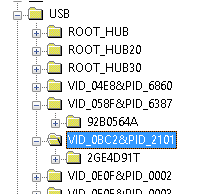
USB_Key_Tree_VID_PID

On the Key highlighted you can see the sub key identifies this by the Serial Number ID we discovered in the previous post. The VID and PID are preceded by “VID_” and “PID_” so our details are

  • VID – 0bc2
  • PID – 2101

As the investigation continues it is worth not only noting the details of what you found, but exactly where it was found, the time stamp for the last write time and any other details which you think “oh I will remember that, it’s easy”….. No. Write it down!

Up to now we have:

  • Vendor
  • Make & Model
  • Serial Number
  • VID & PID

Onward to the next step!

Posted in USB Forensics, Windows Forensics, Windows Registry Forensics | Tagged , , , , , | Leave a comment

USB Forensics Pt. 1 Serial Number

Forensicating USB devices can be a arduous task, as such I am going to break it down into byte (get it) size chunks.

In order to get the Serial number from a USB device we must start our investigation on the System Hive. Navigate to the following Key

SYSTEM\CurrentControlSet\Enum\USBSTOR

This key will display all of the USB devices plugged into the machine regardless of user. The serial number will be a sub-key of the Device Class ID

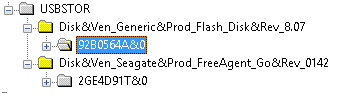
USBStor_Tree

Here you can see two USB Devices have been installed on this machine, a Seagate FreeAgent device and a Generic device (Generic device is not that uncommon, the Serial number will help you to track the USB device through the artefacts).

Both of these devices have a unique serial from their respective manufacturers. This can be seen by the &0 or &1 at the end of the serial number. If instead the second character is an & then the device does not have a unique serial number and Windows has issued one which is unique to the local system only.

Posted in USB Forensics, Windows Forensics, Windows Registry Forensics | Tagged , , , | 1 Comment

RegBack Folder Update Times

Following on from timestamps and how I said they shouldn’t be trusted, I am now going to talk about…. timestamps! The RegBack folder holds a backup copy of the Registry Hives and is located %system32%\config\regback. It is believed that these update every 10 days, however with Windows 8 I would like to show a way to force that timestamp to change prematurely.

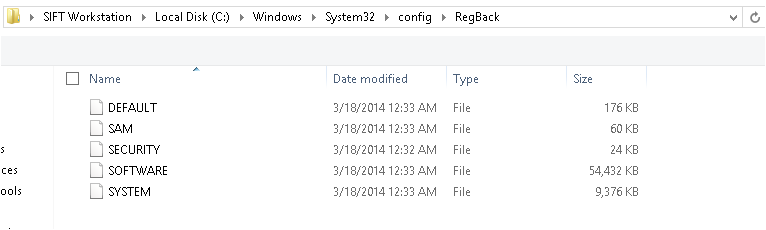
The contents of the Regback folder:

Regback_Folder

Look familiar? Good. Then we can begin. Note the date (in US format)

Next to force a Maintenance:

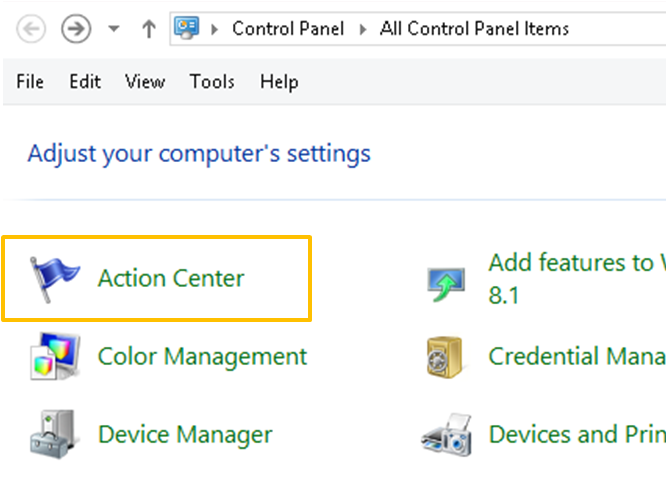
Go to the Control Panel and into the Action Centre

Control_Panel_Action_Centre

And click on ‘Maintenance’ to expand and show the ‘Automatic Maintenance’ below

Action_Centre_Maintenance

You will notice the last run date is today and not too long ago, that is because I have already set this off manually. This is done quite simply by clicking the ‘Start maintenance’ option.

If this runs automatically it does not affect the timestamps on the regback Hives, if however you run this manually it changes the Timestamp. I have no idea what the differences are, Microsoft are not very forthcoming. It may also be possible that the schedule that ran on my VM (which coincidently ran about 1 hour previous) was either incorrectly represented or did not complete. It is also possible it runs an interim maintenance then every 10 days runs a full maintenance. I would love to know your thoughts on this.

I ran a manual maintenance and below are the results of the regback folder:

Regback_Folder2

The maintenance also runs a defrag on the system, so all in all if this has been run, quite bad from a forensics standpoint.

When looking in the System Event log, it is possible to see evidence of this. With EventID 16

Event_Log_Regback_Cleared

These give the following descriptions (in order as above)

Event_Log_Regback_Cleared_Details

And in the Application log we can see a defrag was completed with EventID 258

Event_Log_Regback_Defrag

There are also a lot of prefetch files loaded around the same time, including ping.exe, however this is something for another blog post! The Event log correlates what I believed to be true, along with the timestamps. As these are backups to the registry Hives there is not a lot else I can prove. I wanted to show that this was initiated by a user, however this will need to wait for another day!


Posted in Windows Forensics, Windows Registry Forensics | Tagged , , , | Leave a comment

Hives and Tools and Timestamps….. oh my!

Continuing on from yesterday’s post regarding Hive files not updating:

A colleague and I (say hi Joe) have been doing some research on this along with some very helpful comments from Brian Moran (@brianjmoran) via Twitter.

My previous post commented that Hives were not updated on the fly. The main reasons for this conclusion were the following:

  • After installing a USB device then using FTKImagers capture locked files, the System hive still did not show the USBStor Key
  • This above process was repeated with variations, however the common factor was using FTKImager capture locked files
  • The modified timestamps on the Hives were a few days old, leading me to believe they had not been modified
  • The last reboot time extracted from the registry (I will make a post on how to do this another time) matched the last modified time of the Hives
  • The same timestamp anomaly was present on other Windows 8 machine (my wife’s laptop)
  • This behaviour did not match previous versions of Windows (timestamps or FTKImager locked files)

All of these points led me to the belief that Windows 8 held the Registry in a cache somewhere and wrote it to disk on shut down/restart. This seemed like a very important point due to how a lot of DFIR teams capture ‘fast forensic’ data. It was also very easy to become focussed on the timestamp of the file. The fact that the tool (or feature of the tool) that I was using was not working as intended and instead was showing what I wanted to see meant that I placed too much faith into it. Please don’t take this as a sign of FTKImager capture locked files as being broken, I don’t know why that happened, but it proves that you must always double check.

Just to show it wasn’t as easy to spot using only one tool, below are the two System Hives, the top one has no USBStor key and is an old version, the bottom is the working Hive with USBStor.

Hive_Comparison

and below is the FTKImager capture locked files screen which warns you that these are being captured from the live system
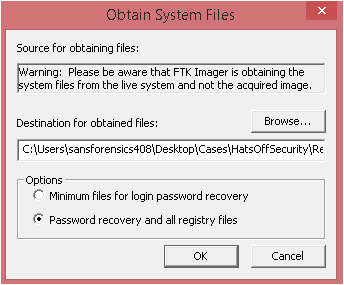
FTKImager_Live_Capture

The comment left by Brian suggests this post regarding Windows 7 is most likely what is the cause (although this link is referring to Windows 7 the Hives in W7 do update the timestamps, as such this is still a Windows 8 ism)

Allow me to also take you through the process of the Hive files are updated. (If this isn’t in order, it’s because I didn’t make notes!!! I can feel Chad Tilbury giving me daggers already….)

First off, add the logical drive in FTKImager as an evidence item (still a good tool after all), browse to %system32%\config and right click the Hive to extract. I am sticking to the System Hive as I know the USBStor isn’t in the original, but it in the live Registry.

Opening the manually extracted Hive and opening with Registry Viewer we can see:
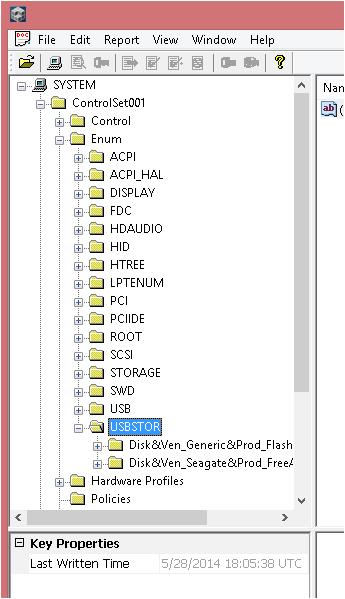
Registry_Viewer_USBStor

Make a note of the ‘Last Written Time’, as you can see this is not the same as the modified time of the Hive.

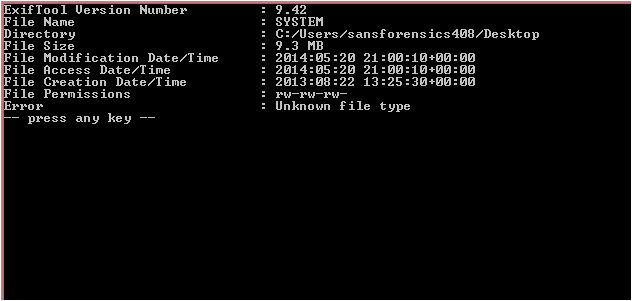
And to prove the meta data I ran Exif Tool against the above Hive and got these results (Exif tool was not really designed for Hives, it looks for meta data, however I just wanted to show the modified time in another way other than Windows Explorer)
Exif_Tool_System_Hive

And yes it is on the Desktop, not best practice I know. Also to explain the username, this VM is the Windows 8 SIFT workstation as provided when attending SANS courses. I strongly recommend the 408, just because it starts with a 4 don’t under estimate the knowledge you can gain from it.

Conclusion

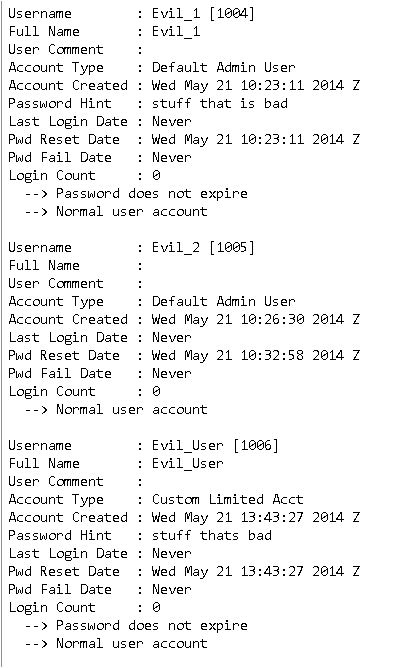
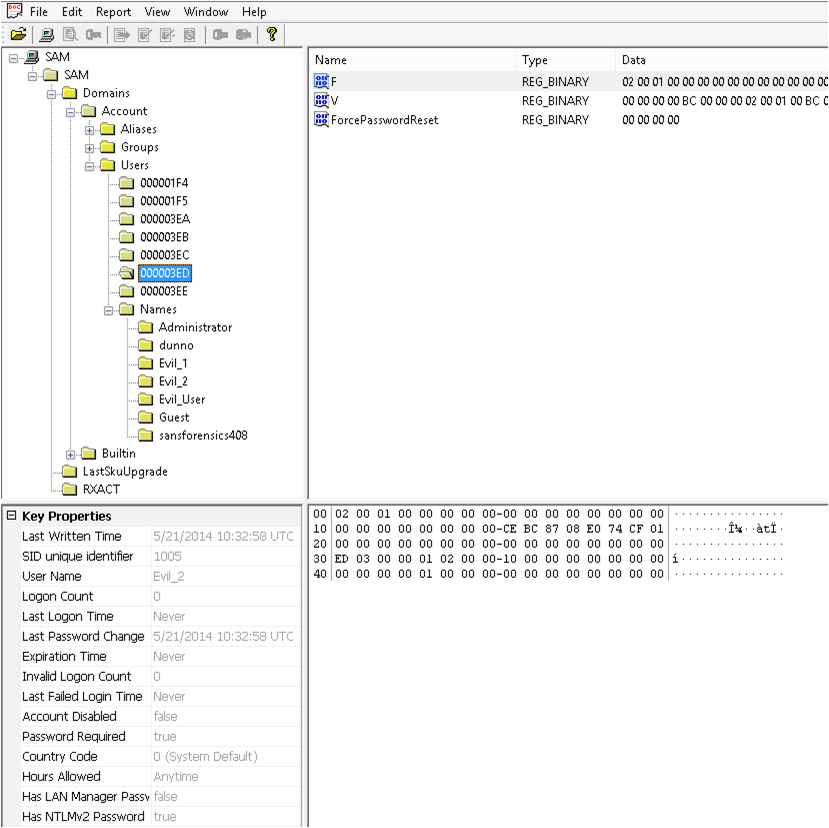
My biggest take away from this whole exercise is to remember there is more than one way to look at the data, I actually intentionally missed a few steps from here that Joe and I went through today, including creating user accounts and checking the SAM Hive, running system maintenance and learning that updates the contents of the RegBack folder. I didn’t feel these would add anything to this post. Unless you want to see how to search through Hex in FTKImager using Ctrl+F.

I also realised how good the SIFT Workstation is; the machines I tested this on were host Windows 8 boxes with a basic install, finding the tools needed proved to be almost as annoying as looking at the problem!

And conclusion for the Hives? The timestamps can’t be trusted, as Brian quite rightly points out in his comment. I do not currently know what causes the timestamps to update, I know it happens on a reboot, but how/why? Would a hard reboot (pulling the power) corrupt the registry? Unlikely as we have seen the registry is written to, just not finalised. Perhaps the fact the Hive was ‘closed’ on shutdown sets the modified time. It’s hard to say for 100% sure and to be honest I have looked at this timestamp enough today 😉

Thank you all for your responses and help, especially Joe and Brian, but also all the nice people on Twitter and Chad Tilbury who responded to my emails despite his exceptionally busy schedule.

Posted in Windows Forensics, Windows Registry Forensics | Tagged , , , , | Leave a comment

Windows 8 Hives Not Saved On The Fly

*********After reading, please see this post for the conclusion*********

Whilst playing about with USB devices to start my upcoming USB identification series I noticed something a little odd.

I captured the locked files on the VM when I started this blog, since then I have been suspending the image and resuming it. I realised I had not installed a good USB device (there was only a generic one) so I installed a named device. When I looked through regedit I saw the USBSTOR and the two devices as expected. However when I ran FTKImager to capture the locked files I got a copy of the old files and not the updated ones.

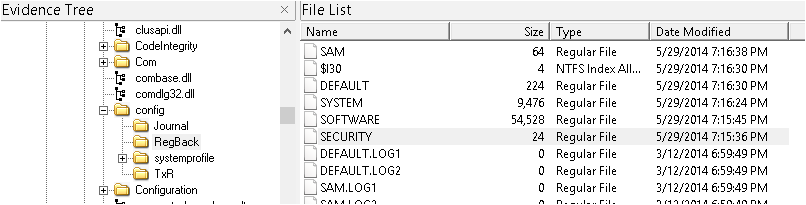
Upon searching through the system32/config folder I noticed the Hives had not been updating since the start of the blog (20/May/14). I found this very odd as the registry is updating the current control set.

My thinking on this is that the Registry is held in memory until the machine is rebooted, if this is the case then that’s quite exciting from a memory forensics view point and a point of caution when carrying out an investigation on a live machine or doing a logical disk image.

System_Hive_Update_Time

After doing some testing on a Windows XP VM, my Windows 7 Host and my wife’s Windows 8 laptop, I now firmly believe this is a Windows 8 oddity, not a VM oddity. I am not sure how widely known this is, but I am quite excited!!

Looking at the last modified time to the Hive files, I correlated that with the last shutdown time of the laptop, guess what, they matched!

It appears Windows 8 saves the Hive files on restart (not 100% sure if it saves on the way down, or the way up, but I would guess the way up as the laptop gets a hard reset a lot – kids!!)

So what does this mean?

Well, if you are capturing a live image you cannot trust the Hive files (did I say that already?) This is a big deal for fast forensics and triage tools that capture these files off live systems.

What is the solution? I don’t know is the honest answer, maybe take the memory capture, logical image, bounce the machine and take Hives as either dead disk or when it’s back up.

Why is this important?

Ok quick bad guy scenario:

User is using their computer to steal corporate data, they bring in a personal USB stick for the first time as its encrypted. The company policy states that machines must be left on to allow for patching to run overnight. This user’s Windows 8 PC hasn’t been off for a few days.

USB device leaves the building, with bad guy. His boss is suspicious and gets the IR team to logically image the device and capture the memory. High fives all round, we got the data we need. Shut off his PC and re-image it for the next person.

Question: Do you have the registry Hive proving he plugged the USB device in which the files were taken away on?

Posted in Windows Forensics, Windows Registry Forensics | Tagged , , , , , | 2 Comments

Network History and Decoding System Time

Following on from my last post we had a GUID starting C1CDD (normally I would write the whole GUID down, but for the sake of not boring you all, I will keep it short), in this post we are going to see how that is useful.

Starting inside the Software Hive and finding the following key (Zelda style)

SOFTWARE\Microsoft\Windows NT\CurrentVersion\NetworkCards

Registry_Viewer_NetworkCards_Key

As you can see from the massive list of network cards (you will most likely have more than one, depending on where the machine has been used) key ‘1’ contains the C1DCC GUID from earlier. You can now associate that with the Intel 82574L NIC. This will be useful to prove it was the actual NIC in the machine and not a VM (or vice versa)

Next Zelda, I need you to find the following Key

SOFTWARE\Microsoft\Windows NT\CurrentVersion\NetworkList\Nla\Cache\Intranet

Registry_Viewer_Network_NLA

Under Cache you may also have ‘Wireless’, but as no wireless card is configured with this VM, we don’t have one here. Under Intranet you will see a list of domains that your machine has been connected to. ‘localdomain’ is the same domain as the previous post shows us (go see for yourself) and there is that magical C1CDD again. This time pointing at the MAC Address of the default gateway of the ‘localdomain’ network.

Next my Robin Hood/Yellow Haired Elf Hybrid we need to find this Key

SOFTWARE\Microsoft\Windows NT\CurrentVersion\NetworkList\Signatures\Unmanaged

Registry_Viewer_Signatures_Unmanaged

This part can be a little annoying if unlike me you have multiple entries in here, click through until you get a match of ‘DefaultGatewayMac’ with the MAC address from the previous step (you are making notes of all these and where you got them from…. right?). If you know of another way of finding this please leave a comment below, everyday is a school day after all.

Now make a note of the ‘ProfileGuid’

And now young Zelda, for the final Key, not technically the Boss Key, but still…

SOFTWARE\Microsoft\Windows NT\CurrentVersion\NetworkList\Profiles

Registry_Viewer_Network_Profiles

Under the Profiles key you will see the ProfileGuid as a key name. This Key holds the data regarding the first and last time the network was connected to. Both of these date stamps are in 128 bit System time, which I will go through decoding in a moment. Firstly you will notice the ‘ProfileName’ does not match the ‘localdomain’, this is due to it being a cabled network, a Wireless network gives the name of the SSID here as well as under ‘Description’, the way you confirm this is a wired network is from the ‘NameType’ field, here is a short list of possible options you will meet:

  • 0x47 = Wireless
  • 0x06 = Wired
  • 0x17 = 3g

In order to decode the 128 bit system time you will need to use

DCode_Date_Icon

Dcode Date can decode a variety of times from Windows (except Microsoft seconds, no one can figure those things out, luckily we aren’t installing anything)

registry_Viewer_128bit_System_Time_Hex

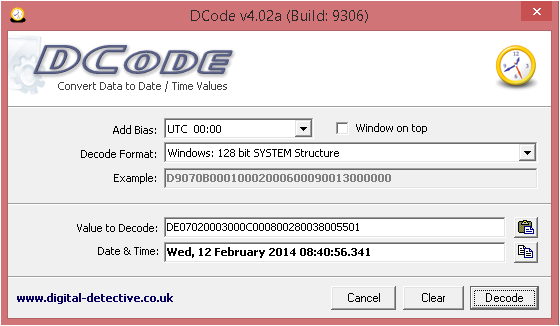
Highlight the Hex from the bottom right window, then either CTRL+H or right click -> Copy Hex and paste it into DCode Date, ensure ‘Windows 128 bit SYSTEM structure’ is selected from the drop down and hit Decode. You should see the outcome as below:

DCode_Date_Screenshot


Posted in Decoding Time, Windows Forensics, Windows Registry Forensics | Tagged , , , | Leave a comment

Network Interfaces

Having the last known IP address of a machine can help you to identify if it was in the wrong segment of the network (everyone does segment their network…. right?), if the address was static or dynamically assigned or if it had been connected directly to the internet.

Within the System Hive there lives a key, the address of that key is thus:

SYSTEM\CurrentControlSet\Services\Tcpip\Parameters\Interfaces

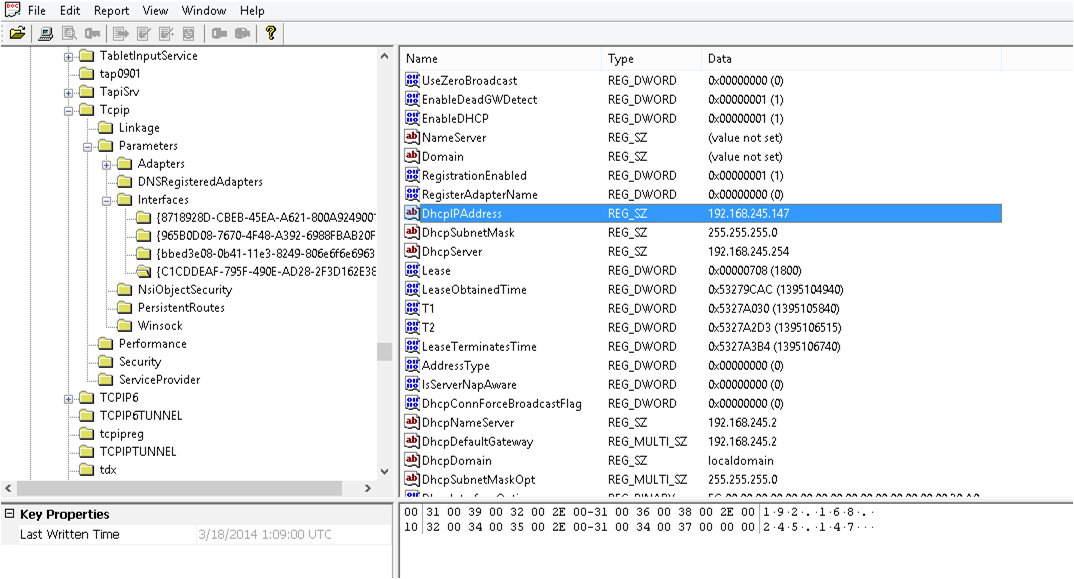
Registry_Viewer_Interfaces

Regviewer will give you this nice view, highlighted is the last DHCP address this machine had. As you can see from a lot of the other fields this is a one-stop shop for basic interface information.

The name of the Key (starting C1CC) is the GUID of the NIC, my next post will show why this is relevant…. get a pen and write it down! I actually don’t know what this VM was connected to, those details are not from any of my networks, so lets go find out shall we?

Posted in Windows Forensics, Windows Registry Forensics | Tagged , , | Leave a comment

Computer Name, Timezone & Current Control Set

Computer Name

Having the computer name will show that the image you have in front of you is from the machine you were expecting. Obviously it’s not a 100% guarantee, but if it’s deifferent, then something is 100% wrong and needs to be checked before spending hours slaving over a forensic image.

The ComputerName is located at

SYSTEM\CurrentControlSet\Control\ComputerName\ComputerName

This is true for all versions of Windows from XP to 8.1

Timezone

The Timezone information will be critically important for the timeline you will create around this case. Some timestamps are not displayed in UTC but instead in local time, knowing what the offset is can not only correct the time, but also help identify which tools do not use UTC for future reference.

The Timezone information is located at:

SYSTEM\CurrentControlSet\Control\TimeZoneInformation

Control Set

Those of you with a keen eye would’ve noticed both of those keys contain ‘CurrentControlset’ which is only displayed on a live system. On an imaged system it is expected that ‘ControlSet00n) would be seen (where n is the number of the control set, usually 1 or 2). It is possible to have more than two control sets, so do not panic if there are several.

The Control set information is located at:

SYSTEM\Select

Under the ‘Current’ Field you will notice a Hex data value, the last digit will represent n value of the control set you need to be looking at

Posted in Windows Forensics, Windows Registry Forensics | Tagged , | Leave a comment

Operating System Version and Banners

Without know which Operating System your image was running you cannot possibly hope to carry out a comprehensive investigation. So my next couple of posts will be very short ‘quick wins’ of where to get some critical data. Starting with the Operating System version:

I recommend simply using Registry Viewer for this one, the data is stored in plain text and is easy to read/understand. You will need to open the Software Hive and browse to the following Key

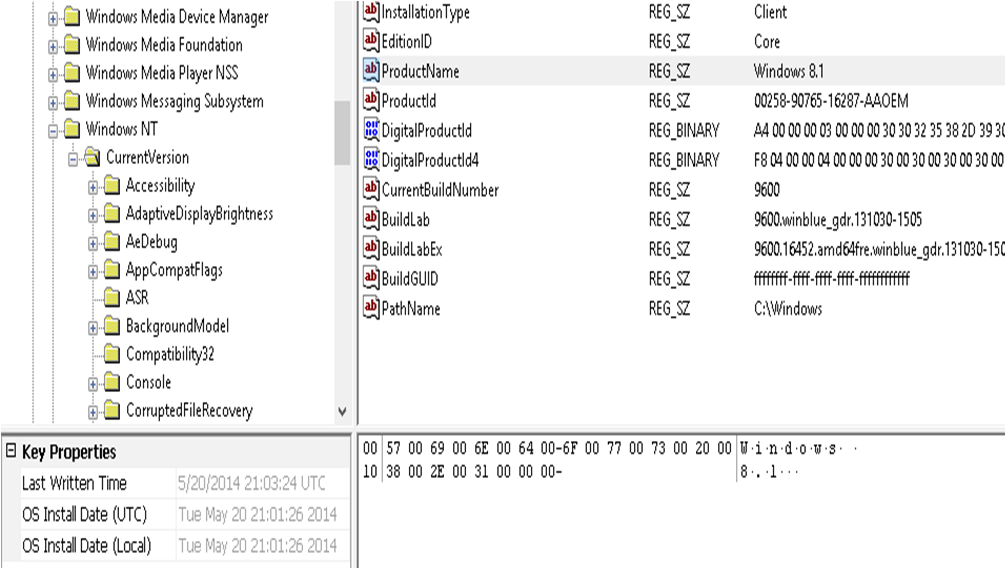
SOFTWARE\Microsoft\Windows NT\CurrentVersion and look for ‘ProductName’

Registry_Viewer_OS_Version

With Windows 8 there is no ‘CSDVersion’ as we have seen with previous versions to dictate service pack. It is theorised that Microsoft have moved away from Service Packs in favour of this new decimal system in order to allow a ‘mandatory update’ policy with a much shorter time-span than Service Packs in order to avoid the two-year support window service packs brought.

Previous version of Windows use the same Key path to determine the Windows versions, but the will also include ‘CSDVersion’ to allow for service pack identification.


Posted in Windows Forensics, Windows Registry Forensics | Tagged , | Leave a comment